Publishing & Sharing
Turn a story into a link others can play.
Publishing turns your story into a link anyone can open and play - without touching your live, editable story. It happens in two steps: freeze a snapshot, then publish a version of it. All of this lives on the story's Settings page.
Snapshots#
A snapshot is a frozen copy of your entire story - every beat, scene, character, and the blackboard - taken at the moment you create it. After creating a snapshot, you can continue editing your story without affecting it, so you can keep your live story evolving while testers play through a stable version. A story can hold up to 20 snapshots at once, shown newest first as cards with their creation date.
A snapshot isn't permanently locked: each card's menu has Update to current, which re-freezes it with your story's current state in place. Delete removes the snapshot along with every publication made from it, breaking their links.
Publishing a version#
Publishing takes a snapshot and turns it into a shareable link. Give it a label so you can tell versions apart later, pick a starting beat from that snapshot, and optionally override some variables to create the scenario you want, then confirm to get a link.
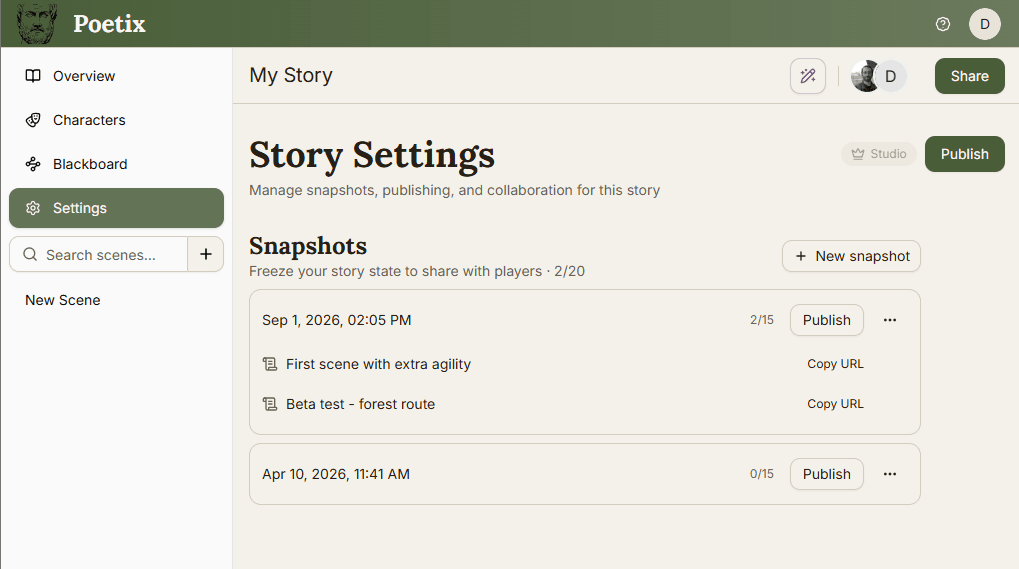
There are two ways to publish: you can click Publish on a specific snapshot card to publish from that exact frozen state. or the Publish button at the top of the Settings page - it creates a new snapshot and publishes from it in one go - the fast path when you just want a link to your story as it is right now. Either way, one snapshot can carry up to 15 published versions, each with its own label, starting point, and overrides - handy for sending different testers into different parts of the same frozen story.
Sharing and managing links#
After publishing, you'll be able to Copy the URL of the version you've published. Each has its own Copy URL button. Deleting a publication will stop the link from working immediately.
A published link plays similarly to the Test, but without any of the debug annotations - just the story, reacting to whatever conditions and variables it was given.